Skip to content
Request a demo

PatientCord · for patients

The patient’s
end of the cord.

CardioCord runs the office. PatientCord keeps the patient connected to it.

One app for the person the whole visit is about: their next appointment, a check-in from the waiting room, the numbers they take at home, answers to their questions, and the records their doctors send — kept in their own wallet.

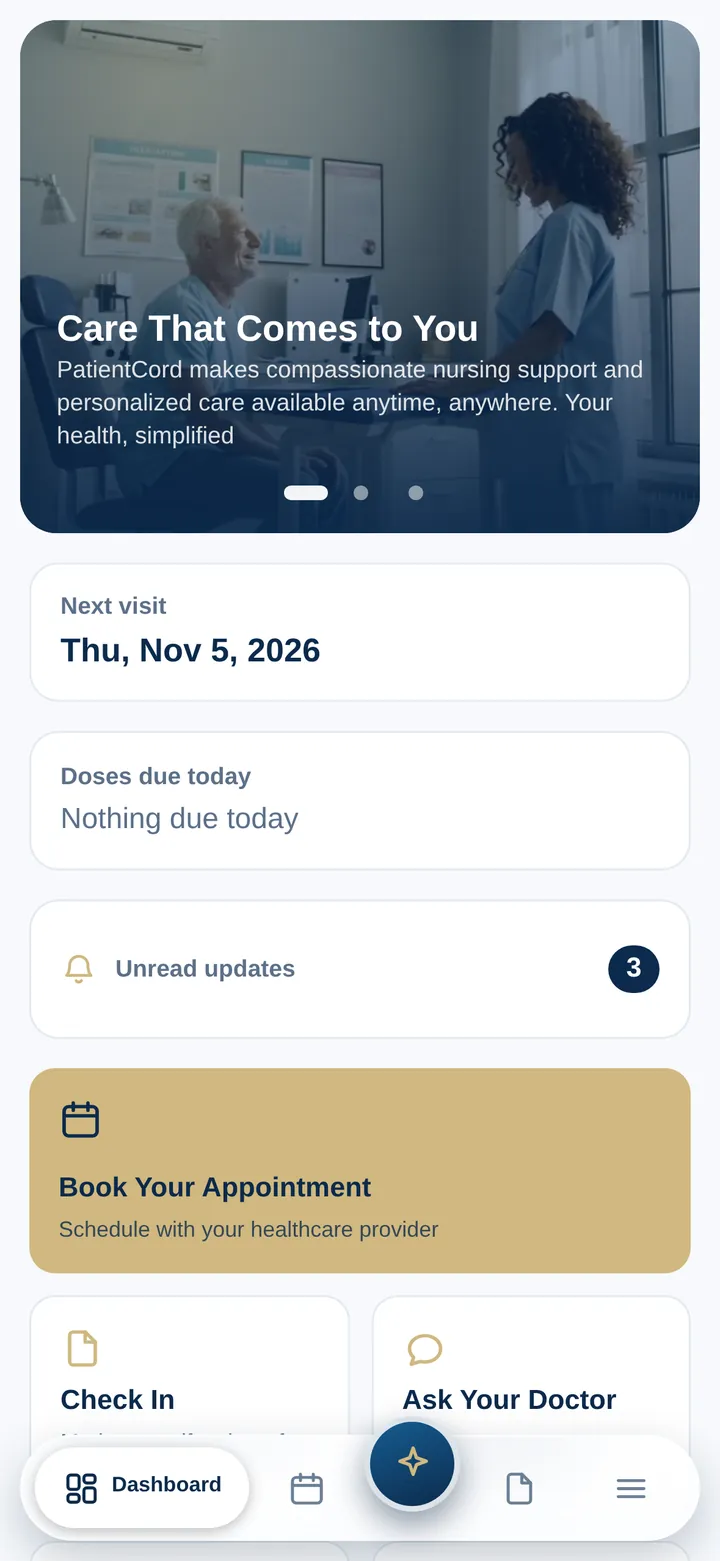
PatientCord home screen: a photo banner, then Next visit Thu, Nov 5, 2026, Doses due today Nothing due today, three unread updates, and tiles for Book Your Appointment, Check In and Ask Your Doctor.
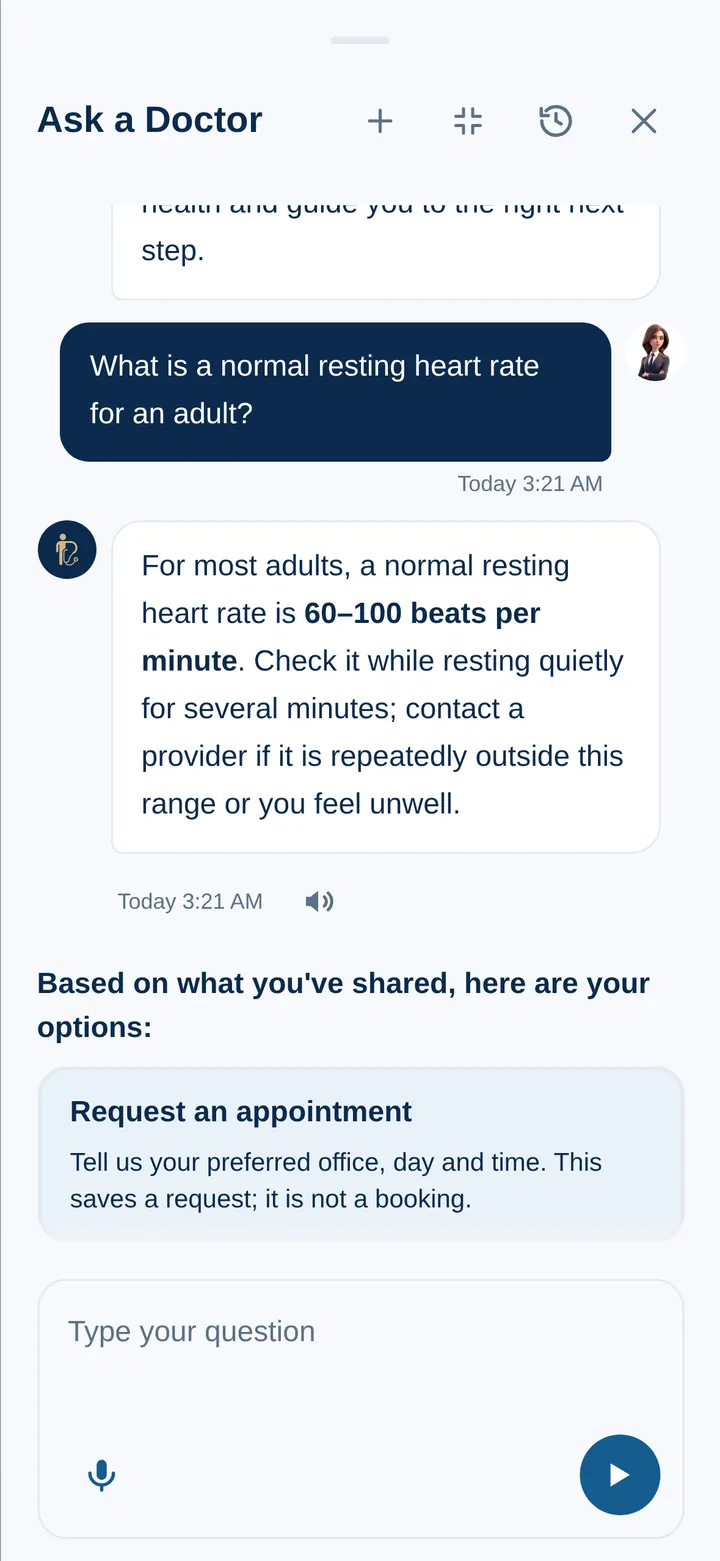
Ask a Doctor: the patient asks what a normal resting heart rate is for an adult; the answer says 60–100 beats per minute for most adults, to check it while resting quietly, and to contact a provider if it is repeatedly outside that range, then offers Request an appointment as the next step.
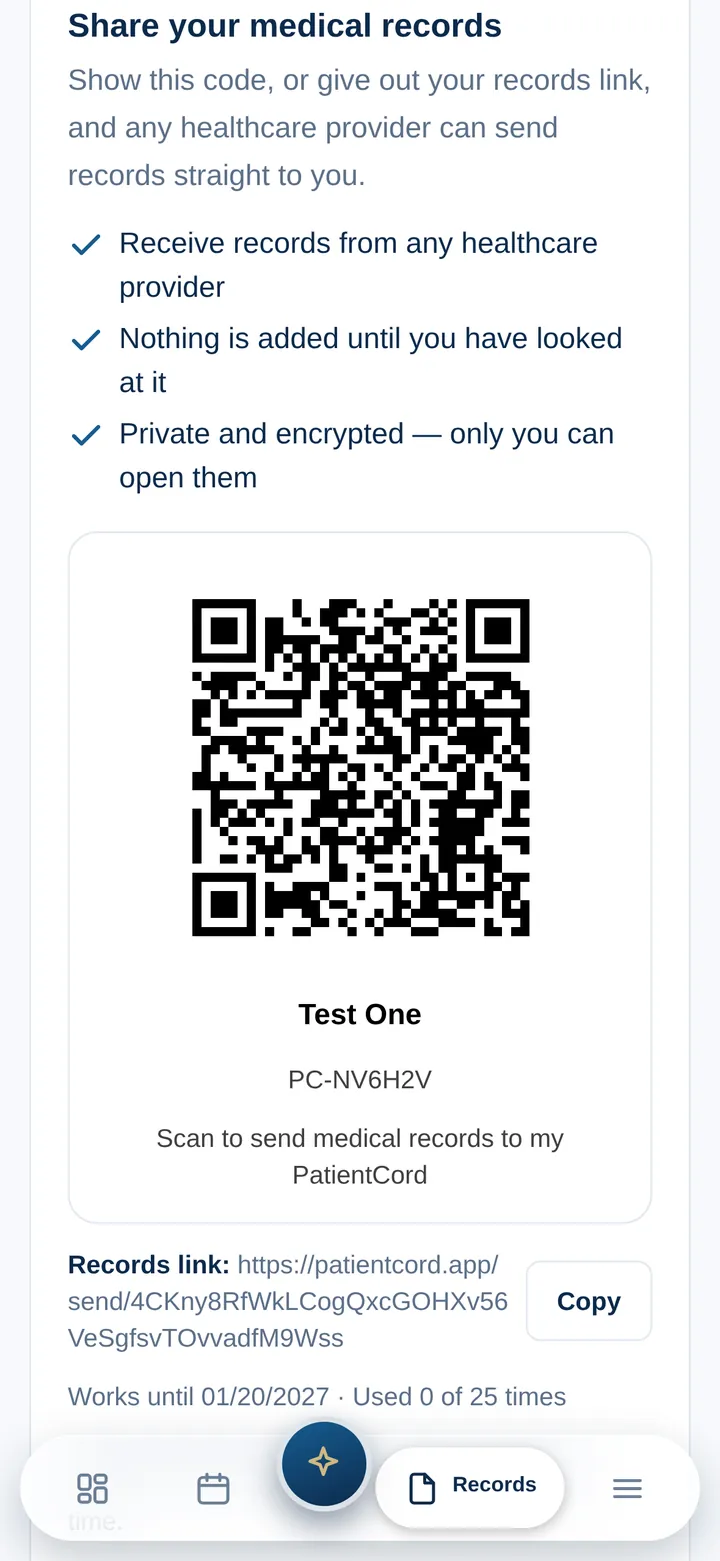
Share your medical records: a QR code with the patient’s name and PatientCord ID, “Scan to send medical records to my PatientCord,” and the records link with a Copy button.

Real PatientCord screens from patientcord.app on an iPhone, signed in as a demo patient. Every record shown is synthetic; provider and office names are placeholders.

Why a patient app

A visit does not start at the front desk.

It starts at home, with a question, a reading, a request for a time. It ends at home too, with a report to keep and a next step to remember. CardioCord gives the office one connected workflow; PatientCord is where the patient joins it.

  1. Before the visit

    Request a time at the office that suits, check in from the waiting room, and know what is next.

  2. Between visits

    Blood pressure, heart rate, weight and oxygen level, logged from home with a trend for each.

  3. After the visit

    Reports arrive in a wallet the patient controls, and nothing is added until they have looked at it.
Ask a Doctor and the App Assistant

Questions answered, with the next step beside the answer.

Two assistants, for two kinds of question. Each answers in plain language, can read its answer aloud and takes dictation.

  • Ask a Doctor: the patient asks what a normal resting heart rate is for an adult; the answer says 60–100 beats per minute for most adults, to check it while resting quietly, and to contact a provider if it is repeatedly outside that range, then offers Request an appointment as the next step.

    Ask a Doctor

    Health questions. Where it fits, the answer comes with options — request an appointment, call the on-call provider or, in an emergency, 911.

    It says what it is: “I’m not a doctor, and no one from the practice is reading this chat.”

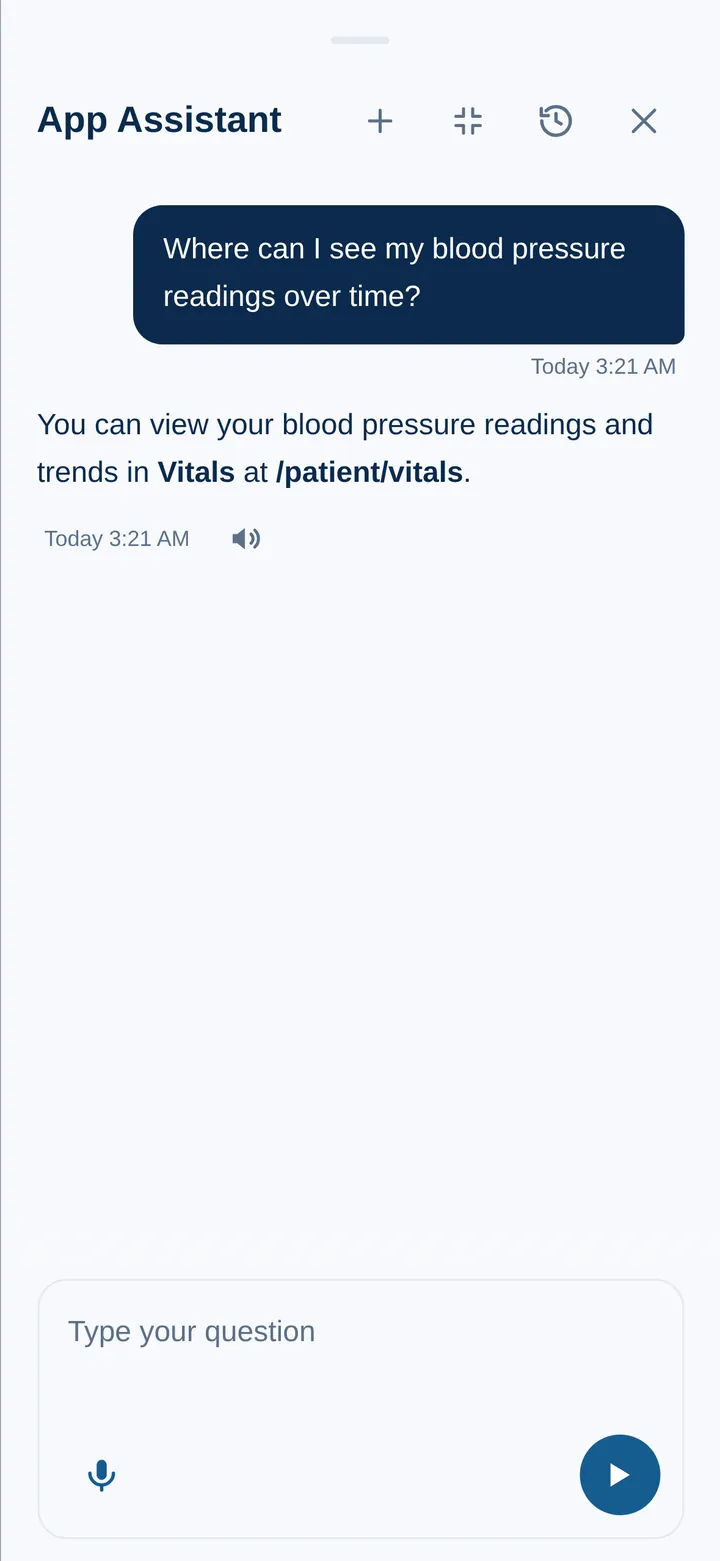
  • App Assistant: the patient asks where to see blood pressure readings over time; the assistant answers that readings and trends are in Vitals, with a button to read the answer aloud.

    App Assistant

    Questions about the app itself — where a record lives, how a provider can send one — answered with the screen to go to.

    For finding the way around PatientCord, not for symptoms.

Real PatientCord screens from patientcord.app on an iPhone, signed in as a demo patient. Every record shown is synthetic; provider and office names are placeholders.

The tour

One patient, start to finish, screen by screen.

Scroll, and the phone moves from screen to screen the way a patient does.

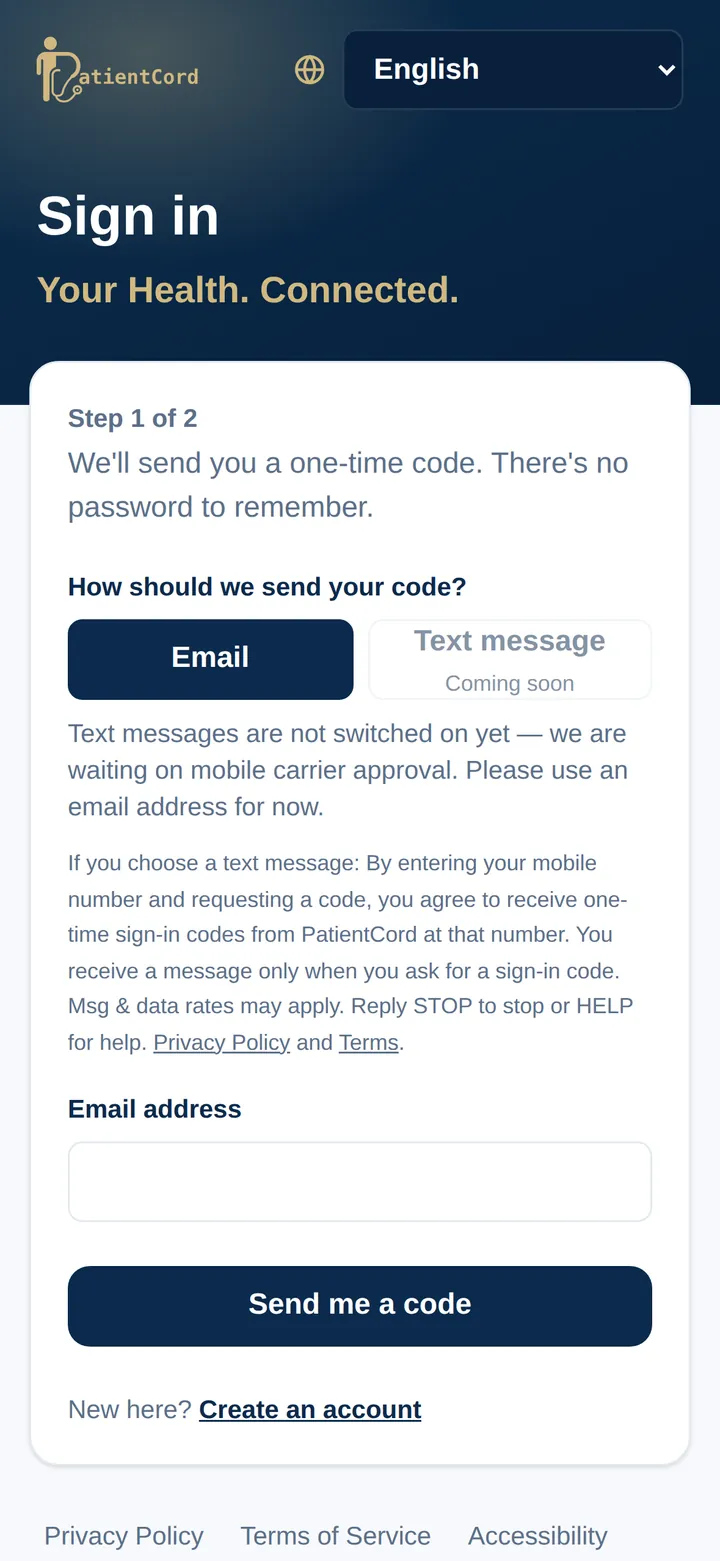
  1. PatientCord sign-in on an iPhone: step 1 of 2, “We’ll send you a one-time code. There’s no password to remember,” with Email chosen and an email address field.
    01

    Sign in with a code

    No password to remember. PatientCord e-mails a one-time code; text messages are coming.

  2. PatientCord home screen: a photo banner, then Next visit Thu, Nov 5, 2026, Doses due today Nothing due today, three unread updates, and tiles for Book Your Appointment, Check In and Ask Your Doctor.
    02

    The day at a glance

    The next visit, doses due today and unread updates on top, and every part of the app one tap away.

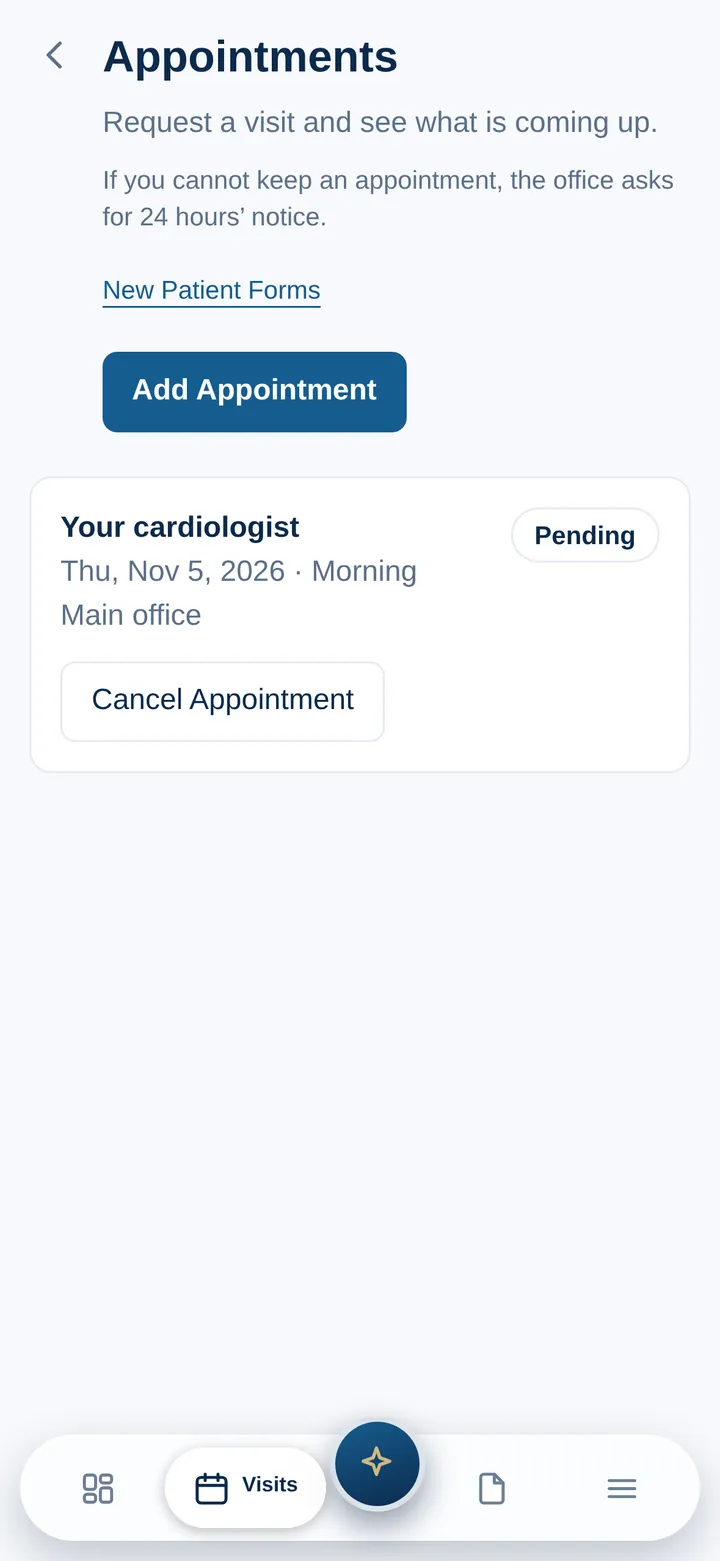
  3. Appointments: an Add Appointment button and one requested visit with Your cardiologist, Thursday November 5, 2026, morning, at the Main office, marked Pending, with Cancel Appointment.
    03

    Request a visit

    Pick an office, a preferred day and time, and a reason. It is a request, not a booking: the office confirms.

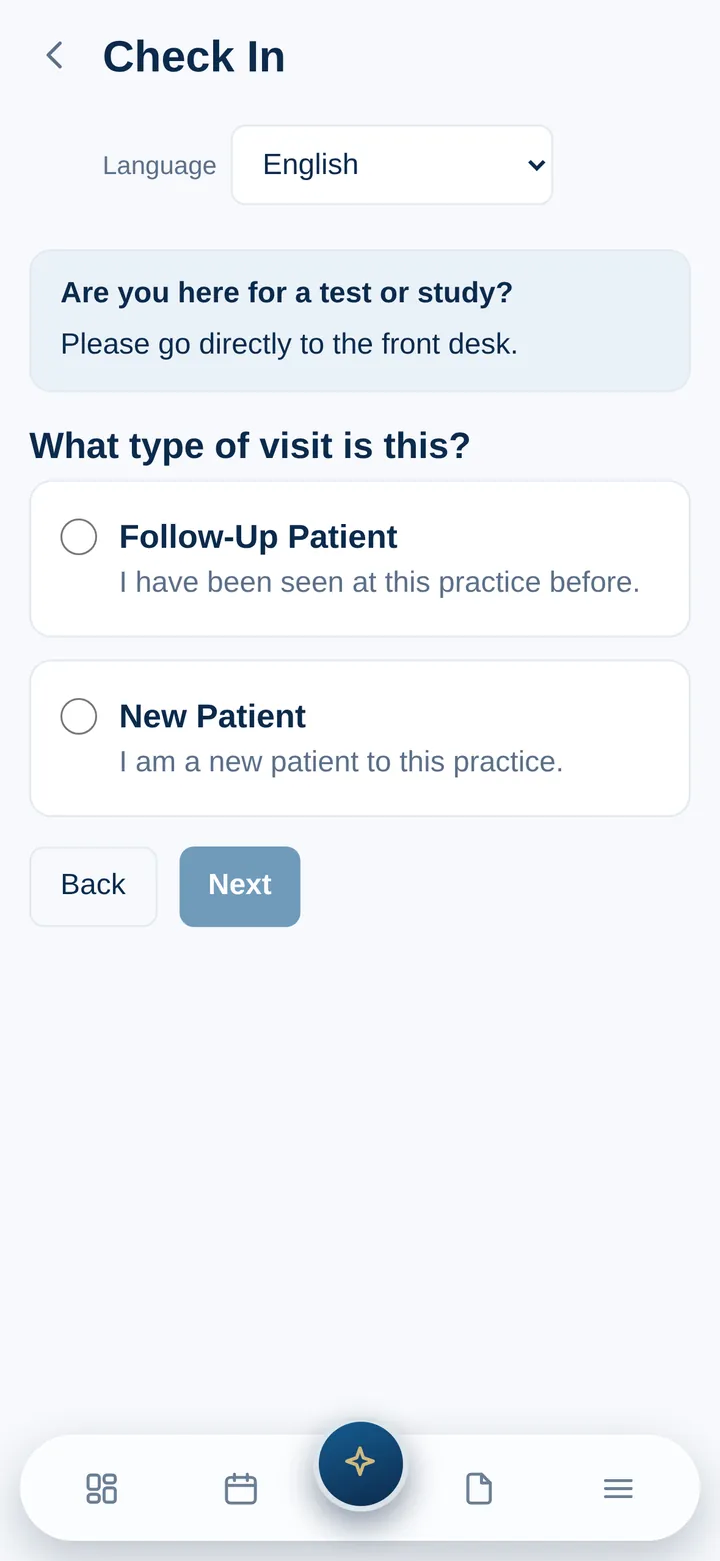
  4. Check In: a language picker, a note to go to the front desk for a test or study, and the question What type of visit is this? with Follow-Up Patient and New Patient.
    04

    Check in from the waiting room

    Follow-up or new patient, in English, Español, Français or Kreyòl Ayisyen.

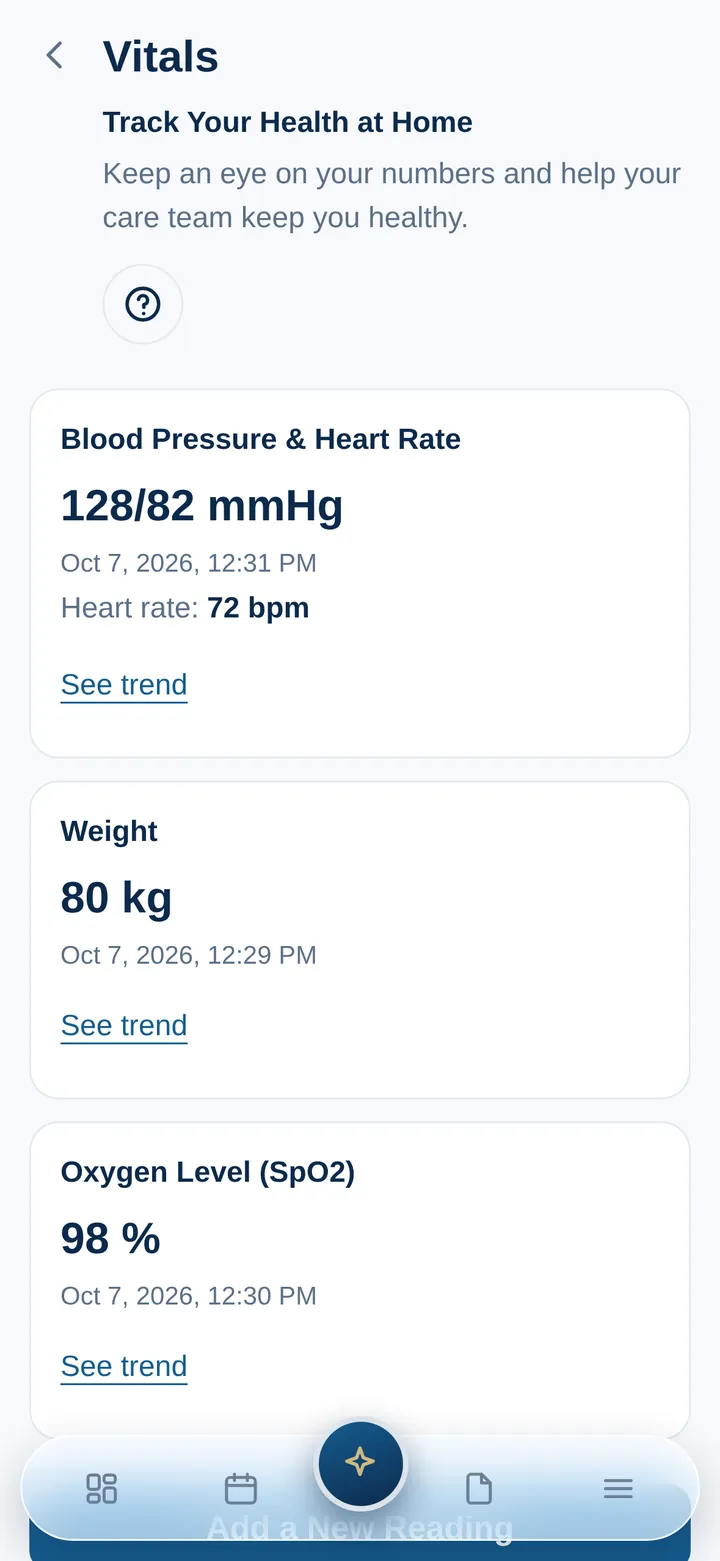
  5. Vitals: Blood Pressure & Heart Rate 128/82 mmHg with heart rate 72 bpm, Weight 80 kg and Oxygen Level 98 percent, each with a See trend link.
    05

    Numbers from home

    Blood pressure and heart rate, weight and oxygen level, each with its own trend.

  6. Ask a Doctor: the patient asks what a normal resting heart rate is for an adult; the answer says 60–100 beats per minute for most adults, to check it while resting quietly, and to contact a provider if it is repeatedly outside that range, then offers Request an appointment as the next step.
    06

    Ask a Doctor

    A health question, an answer in plain words, and a next step beside it.

  7. App Assistant: the patient asks where to see blood pressure readings over time; the assistant answers that readings and trends are in Vitals, with a button to read the answer aloud.
    07

    Ask the app

    The App Assistant answers how-to questions and names the screen that does it.

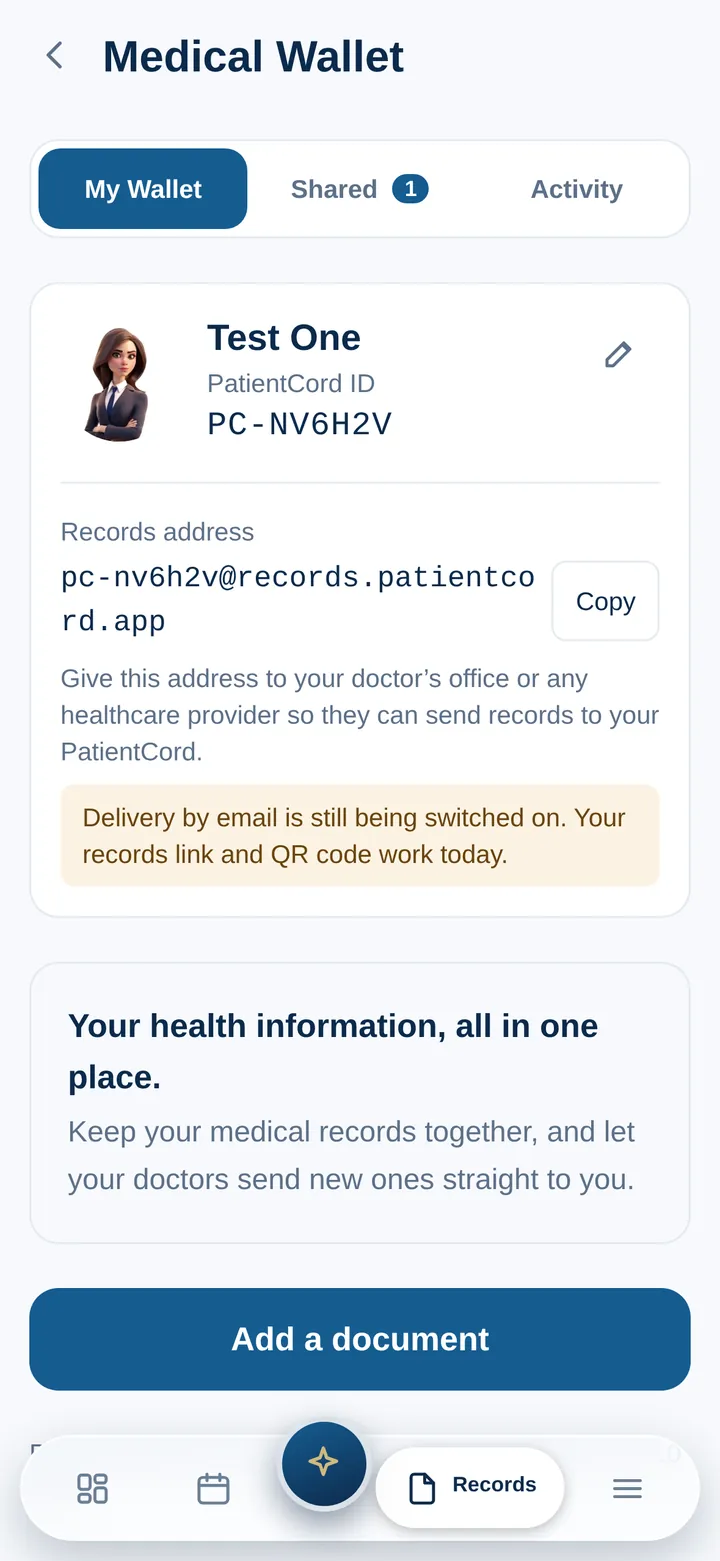
  8. Medical Wallet: My Wallet, Shared and Activity tabs, the patient’s PatientCord ID and records address, and an Add a document button.
    08

    A medical wallet

    Documents in one place, under a PatientCord ID. Add one with the camera or from a file.

  9. Share your medical records: a QR code with the patient’s name and PatientCord ID, “Scan to send medical records to my PatientCord,” and the records link with a Copy button.
    09

    Share with a code

    A QR code and a records link. Replace it, or turn it off, at any time.

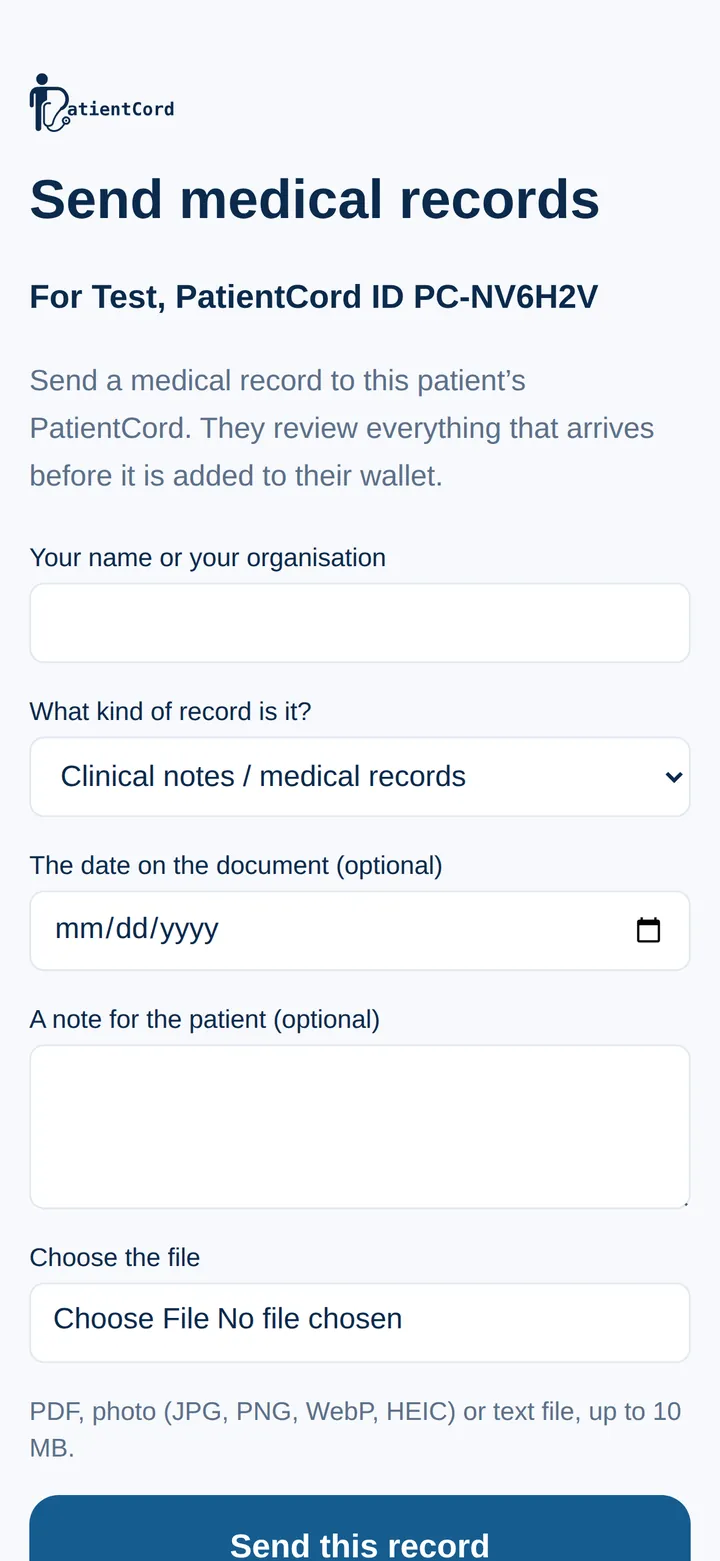
  10. The provider’s side, Send medical records: fields for the sender’s name, the kind of record, the document date, a note for the patient and the file, and a Send this record button.
    10

    The provider sends

    The office opens the link — no account, no app — and attaches the record.

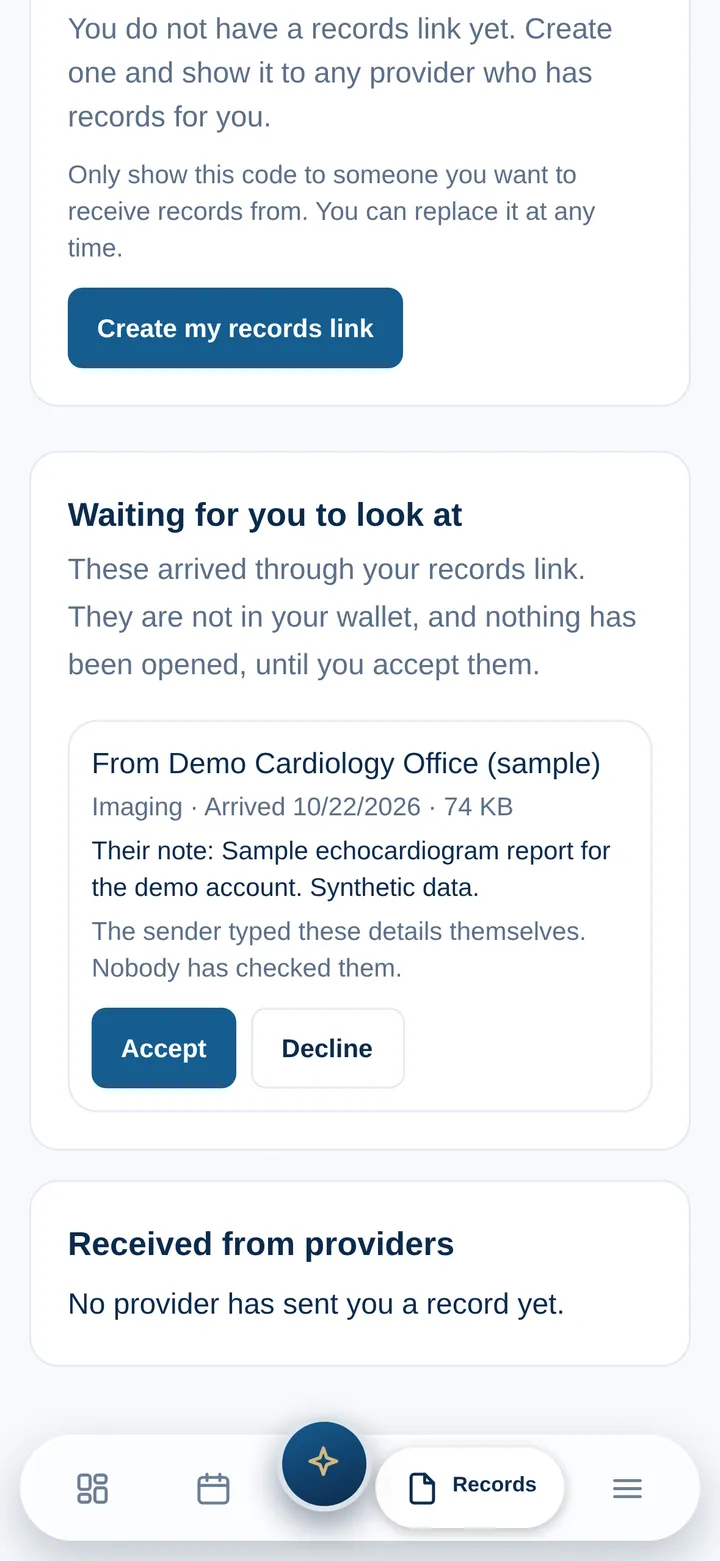
  11. Waiting for you to look at: a sample echocardiogram report from Demo Cardiology Office, with the sender’s note, “The sender typed these details themselves. Nobody has checked them,” and Accept and Decline buttons.
    11

    The patient decides

    It waits until the patient accepts or declines it. Nothing is added unseen.

Real PatientCord screens from patientcord.app on an iPhone, signed in as a demo patient. Every record shown is synthetic; provider and office names are placeholders.

Sharing documents

Records come to the patient, and wait for a yes.

PatientCord gives every patient a code that any healthcare provider can send records to, and a review step before anything lands in their wallet.

  1. Share your medical records: a QR code with the patient’s name and PatientCord ID, “Scan to send medical records to my PatientCord,” and the records link with a Copy button.
    01

    The patient shows a code

    The Shared tab holds a QR code and a records link, with the patient’s name and PatientCord ID. The patient can replace the link or turn it off.

  2. The provider’s side, Send medical records: fields for the sender’s name, the kind of record, the document date, a note for the patient and the file, and a Send this record button.
    02

    The provider sends

    Whoever has the record opens the link in a browser, says who they are and what it is, and attaches a PDF, a photo or a text file.

  3. Waiting for you to look at: a sample echocardiogram report from Demo Cardiology Office, with the sender’s note, “The sender typed these details themselves. Nobody has checked them,” and Accept and Decline buttons.
    03

    The patient accepts — or declines

    It waits under “Waiting for you to look at”, with a reminder that the sender typed the details themselves. Accepted, it joins the wallet.

Real PatientCord screens from patientcord.app on an iPhone, signed in as a demo patient. Every record shown is synthetic; provider and office names are placeholders.

Two ends, one cord

The office on one end. The patient on the other.

CardioCord

For the practice

  • Office Flow from check-in to check-out
  • Patient workspaces and Office Chat
  • Remote virtual scribes, powered by AI agents

PatientCord

For the patient

  • Visit requests and check-in
  • Vitals from home, with trends
  • Answers, and a medical wallet they control

PatientCord is a separate app with its own sign-in, live today at patientcord.app. Nothing on this site connects to it, and the CardioCord portal is still coming soon.

See PatientCord for yourself.

It is live at patientcord.app. To talk about CardioCord for your practice, request a demo.